Asynchrony
Background
In synchronous communication, the two parties must wait for each other to send and receive messages. The parties are present at the same time. Like a phone call.
In contrast, asynchronous communication allows one party to send a message without waiting for a response from the other party. Like sending an email.
In programming, asynchronous communication is nonblocking. The caller simply initiates a long running task (such as a file system or network request) and continues doing useful work without waiting for a result. The task happens in the background (perhaps on another thread). And it’s not just I/O that has unpredictable, long running completion times. A program should never block waiting for a user interaction or a timer to expire—these should be asynchronous, too.
If we get things right, asynchronous, nonblocking communication allows programs to be significantly more efficient and responsive. The I/O channels stay full, user interactions are processed promptly, and the overall system throughput increases.
There are two important concepts in asynchronous programming: events and promises. Let’s explore each of them.
Events
Asynchronous programming is often implemented with events. An event is something that happens, such as a user clicking a button, a timer expiring, or a file or network operation having completed.. Because events can happen at any time, from sources both within and outside of a program, systems that feature events are naturally concurrent! You’ll find events in multi-user and interactive systems (with user-generated events) and where I/O operations can occur over unpredictable durations and at unpredictable times.
An event object has properties such as its type (click, open, changed, keypress, etc.), the time at which it was generated, how it should behave (e.g., should it propagate?), and type-specific information such as the window coordinates for a click event, or the key code of a key event.
Events are created by event emitters and dispatched to event targets. You register event listeners (also called event handlers) with the targets. Listeners are functions that execute when the event lands at the target.
Here are some examples:
Browser Events
Here are some of the standard events in browser land:
| Ambient Light | devicelight |
|---|---|
| Battery status | chargingchange chargingtimechange dischargingtimechange levelchange |
| CSS Animations | animationstart animationiteration animationend |
| CSS Transitions | transitionrun transitionstart transitionend transitioncancel |
| Clipboard | cut copy paste |
| Device Orientation | devicemotion deviceorientation |
| Drag and Drop | dragstart dragend dragenter dragleave drag dragover drop |
| Focus | focus blur |
| Form | reset submit |
| Gamepad | gamepadconnected gamepaddisconnected |
| History | pagehide pageshow popstate |
| IndexedDB | complete success error abort versionchange upgradeneeded blocked |
| Input | change input abort |
| Keyboard | keydown keypress keyup |
| Media | seeking seeked suspend pause play waiting ended playing durationchange loadeddata emptied loadedmetadata ratechange timeupdate canplaythrough canplay stalled volumechange |
| Media Capture | devicechange |
| Misc | languagechange invalid input hashchange |
| Mouse | click dblclick mouseup mousedown mousemove mouseover mouseenter mouseout mouseleave wheel select contextmenu show |
| Network | online offline |
| Notifications | notificationclick |
| Page | visibilitychange |
| Pointer | lostpointercapture gotpointercapture pointerenter pointerleave pointermove pointerdown pointercancel pointerup pointerover pointerout pointerlockerror pointerlockchange |
| beforeprint afterprint | |
| Progress | loadstart load progress timeout abort error loadend |
| Proximity | deviceproximity userproximity |
| Push | pushsubscriptionchange push |
| Resource | load beforeunload unload cached error abort |
| Resource Timing | resourcetimingbufferfull |
| SVG | beginEvent endEvent repeatEvent SVGLoad SVGUnload SVGResize SVGScroll SVGZoom SVGError SVGAbort |
| Screen Orientation | orientationchange |
| Selection | selectstart selectionchange |
| Server Sent | open message error |
| Service Workers | message |
| Text Composition | compositionstart compositionend compositionupdate |
| Touch | touchstart touchend touchmove touchcancel |
| Update | noupdate obsolete updateready downloading checking error |
| View | resize scroll fullscreenchange fullscreenerror |
| Web App Manifest | appinstalled |
| Web Audio | audioprocess complete ended |
| Web Messaging | message |
| Web Speech | resume error error soundstart soundend speechstart speechend voiceschanged start end nomatch result mark boundary audioend audiostart start end pause |
| Web Storage | storage |
| Web Sockets | open message error close |
| Web Workers | message |
| XMLHttpRequest | readystatechange |
Many browsers, and their plugins, will create tons of additional non-standard events. You should checkout the Event Reference page at MDN, which lists well over 100 standard and non-standard events.
Here’s a simple example of handling a click event from JavaScript in a browser:
See the Pen Transition Demo by Ray Toal (@rtoal) on CodePen.
In the browser, the possible event targets are:
- The
windowobject - The
documentobject - Any HTML element
- XMLHttpRequest objects, AudioNodes, AudioContexts, and other things....
The methods on event targets are: addEventListener, removeEventListener and dispatchEvent.
Since the event objects are passed to the event listeners, you can read the event properties, as in this example:
<body>
  <p id="theP">Hello click me.</p>
  <script>
    document.getElementById('theP').addEventListener('click', (e) => {
      console.log(e.type, e.target.tagName, e.clientX, e.clientY, e.isTrusted);
    });
  </script>
</body>
When you click on the paragraph, you will see something like:
click P 28 16 true
But wait. That <p> element was nested inside a <body> element, so doesn’t the body element get the event, too? If so, which one—the inner or outer element—would get the event first?
Actually all of the possible targets get the event...twice! If you click on the paragraph element, a click event is sent first to the window, then to the document, then to the body, then to the paragraph, then to the paragraph again, then the body again, the document again, and finally to the window again. Did you notice how this event propagation happens in two phases? First, the event propagates outside-to-inside in the capturing phase, then inside-to-outside in the bubbling phase. Let’s explore:
<!doctype html>
<html>
  <head>
    <meta charset="utf-8">
    <title>Exploring Events</title>
    <style>
      body, div, p, span {margin: 20px; padding: 8px}
      body {background-color: #eeffee}
      div {background-color: #ffffee}
      p {background-color: #eeffff}
      span {background-color: #ffeeff}
    </style>
  </head>
  <body id="thebody">
    <div id="thediv">
      Before
      <p id="theparagraph">Hello you can <span id="thespan">click here</span></p>
      After
    </div>
    <script src="events.js"></script>
  </body>
</html>
function say(arrow, e, name) {
  console.log(`${arrow} ${name} received ${e.type} during ${e.eventPhase}`);
}

function addListeners(el, name) {
  el.addEventListener('click', e => say('⬇︎', e, name), true);
  el.addEventListener('click', e => say('⬆︎', e, name), false);
}

document.querySelectorAll('[id]').forEach(el => addListeners(el, el.id));
addListeners(document, 'The document');
addListeners(window, 'The window');
Note the third argument to addEventListener: if true, the handler kicks in during the capture phase; if false, in the bubbling phase. We’ve added capture and bubble listeners to the document and all four elements, allowing us to see the propagation in action. Here’s what we see when we click on the innermost span:
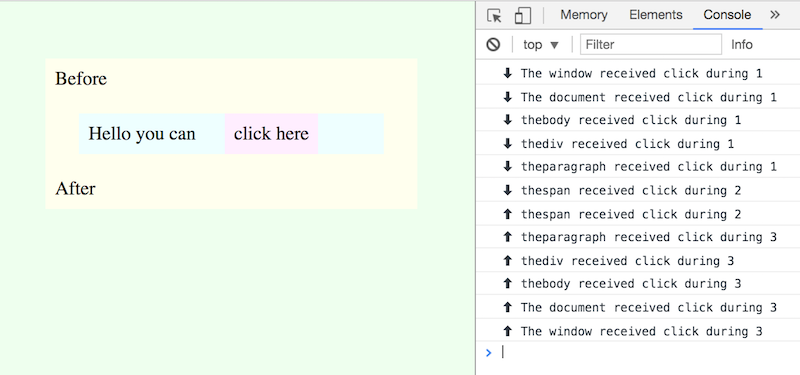
This example shows off some properties of the event object:
type: a string such as'click','touchStart', or'load'.target: the entity responsible for the event in the first place; generally the innermost element.currentTarget: the entity currently handling the event.eventPhase: 1 if in the capture phase, 2 if at the target, and 3 if in the bubble phase. (The 2 can be confusing because you still get a capture event and a bubble event when in phase 2. I compensated for that above by logging arrows in my handler.)
Get the complete details at MDN or the DOM Living Standard.
Propagation can be controlled. Within a handler, you can call e.stopPropagation(). It does just what you think it does.
You can programmatically fire events yourself with dispatchEvent. Such events are not trusted. This is best learned with an example. Trusted clicks come from your mouse, trackpad, or other real device, while a timer in our code dispatches nontrusted click events every few seconds:
<body>
  <p id="theP">Hello click me.</p>
  <script>
    const p = document.getElementById('theP');
    p.addEventListener('click', (e) => {
      console.log(e.isTrusted ? 'REAL CLICK' : 'FAKE CLICK!!');
    });
    // Send fake clicks every five seconds
    setInterval(() => p.dispatchEvent(new Event('click')), 5000);
  </script>
</body>
Node.js Events
Node.js is a JavaScript runtime system that provides access to files, processes, memory buffers, the console, the network, timers, etc.: all kinds of things for which event-driven programming shines. See the Node.js Events documentation.
Here are some of the standard events in Node.js:
| Child Process | close disconnect error exit message spawn stdio |
|---|---|
| Cluster | disconnect exit fork listening message online setup worker |
| DNS | lookup |
| Domain | error remove |
| HTTP | clientError connect request response upgrade |
| HTTP2 | close connect frameError goaway localSettings remoteSettings stream |
| HTTP2 Session | close connect frameError goaway localSettings remoteSettings |
In Node.js, events are a core part of the architecture. The EventEmitter class is used to create and manage events.
TODO - file system example
TODO - fetch from the web example
Pygame Events
TODO
Promises
TODO - this is when you want a result
Summary
We’ve covered:
- Synchronous vs. Asynchronous Communication
- Advantages of Asynchronous Programming
- Events
- Examples of Events