Alien Invasion LAB14
Welcome
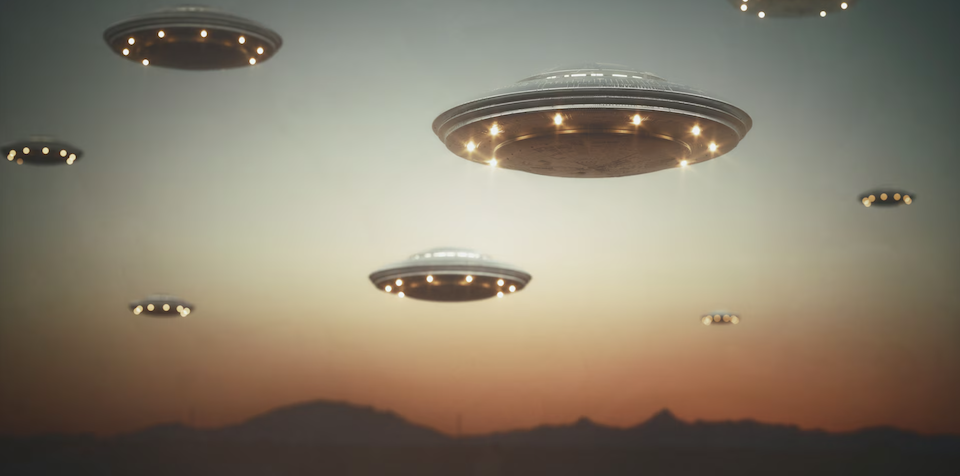
They’re heeeeeerrrreeee!
Fortunately, they don’t seem to care much about us. They just keep flying by.
What We Will Learn
Default dataclass attributes Animation
Activity
Get started by making a new folder, ~/cmsi1010/lab14, with the file ufo.py.
Painting the background
You should be in your virtual environment, with Pygame installed. Let’s start with a simple scene: a grassy field on the bottom 20% of the screen, a cyan sky (this will be the background color), and a yellow-ish sun hanging around the upper right corner. We’ve already learned in previous labs the importance of naming all the things, so let’s take great care in how we express ourselves here:
import pygame

WIDTH, HEIGHT = 800, 600
SKY_COLOR = (0, 255, 255)
SUN_COLOR = (255, 200, 0)
SUN_POSITION = (WIDTH - 100, 100)
SUN_RADIUS = 150
GRASS_COLOR = (0, 128, 0)
GRASS_HEIGHT = 100
GRASS_TOP = HEIGHT - GRASS_HEIGHT
GRASS_RECTANGLE = (0, GRASS_TOP, WIDTH, GRASS_HEIGHT)

pygame.init()
screen = pygame.display.set_mode((WIDTH, HEIGHT))
pygame.display.set_caption("Alien Invasion")


def draw_scene():
    screen.fill(SKY_COLOR)
    pygame.draw.circle(screen, SUN_COLOR, SUN_POSITION, SUN_RADIUS)
    pygame.draw.rect(screen, GRASS_COLOR, GRASS_RECTANGLE)
    pygame.display.flip()


draw_scene()
while True:
    for event in pygame.event.get():
        if event.type == pygame.QUIT:
            pygame.display.quit()
            raise SystemExit

A UFO Class
Now let’s get some flying saucers into the mix. Since these ships (we can call them UFOs in a nod to pop culture) are not just simple circles or rectangles, and since we are going to need multiple UFOs, each of different sizes (and maybe even different colors), we really, really, really need to make a class. It just...makes sense...and it’s kind of the right thing to do. Add this starter class, between the initialization block and the draw_scene function:
@dataclass
class UFO:
    x: int
    y: int
    width: int = 100
    height: int = 30
    color: tuple = (128, 128, 128)

    def draw(self):
        pygame.draw.ellipse(
            screen, self.color, (self.x, self.y, self.width, self.height))
        pygame.draw.ellipse(
            screen, self.color,
            (self.x + self.width//4, self.y-self.height//3, self.width//2, self.height))
You will also need to add from dataclasses import dataclass to the top of your file. Otherwise the new code will not work. Perhaps you already noticed that?
UFO DesignWhere did all those crazy numbers come from? In class, we’ll sketch out the design on a whiteboard. We’ll also explore variations on the design, which you can go crazy on in your independent work time.
UFO Objects
Next, let’s create some UFO objects and draw them into our scene. Add this list to your code under the UFO class:
ufos = [
    UFO(x=0, y=50),
    UFO(x=200, y=100, width=80, height=20),
    UFO(x=400, y=150, width=120),
    UFO(x=600, y=200)]
Then, between the drawing and the flipping in the draw_scene function, add:
    for ufo in ufos:
        ufo.draw()
Feel free to change the color of one or two of them.
Animation
To animate objects, we have to draw them in slightly different places in successive frames. There are two things to do to make this happen:
- Move the
draw_scene()call into the game loop. - After drawing a UFO, change its position by a little bit.
This first part is pretty easy. After moving the call to draw_scene the code at the end of the file becomes a single game loop:
while True:
    for event in pygame.event.get():
        if event.type == pygame.QUIT:
            pygame.display.quit()
            raise SystemExit
    draw_scene()
The second part is best implemented by adding a move method to the UFO class. Let’s make it so the UFOs go from left to right, and when they go off the right edge of the screen, they “come back in” from the left side. This gives the illusion of a UFO swarm. Here’s the move method:
    def move(self):
        self.x += 1
        if self.x > WIDTH:
            self.x = -self.width
This method is called right after drawing, so update the for-loop like so:
    for ufo in ufos:
        ufo.draw()
        ufo.move()
We have our animation but it’s a little clunky because all of the UFOs move at the same speed. Let’s liven things up a bit with these three steps:
- Put a speed property into the dataclass (right after the color property):
speed: int = 1 - In the
movemethod, replace the line that increments the x-position by 1 with code that increments it by the speed:self.x += self.speed - When creating the list of UFOs, mix things up a bit by giving them different speeds. Here’s one to try:
ufos = [
    UFO(x=0, y=50),
    UFO(x=200, y=100, speed=3.5, width=80, height=20),
    UFO(x=400, y=150, color=(160, 160, 160), width=120, speed=3),
    UFO(x=600, y=200, speed=4)]
Controlling the frame rate
Did your animation look weird and flashy and jerky and unpleasant? It might, because different computers have different hardware and different operating systems and who knows how fast the display is getting flipped (updated)? Fortunately, Pygame gives us a way to make sure we update the display at a consistent rate, such as 60 times per second. Because each scene we draw is called a frame in animation-speak, this number of frames per second to render is called the frame rate.
We set this up in two steps in Pygame. Up near the top, when doing your set up, after the set_caption call, define a new variable like so:
clock = pygame.time.Clock()
Then, just before your do your flip call to render the scene, write:
clock.tick(60)
Try it now. Your animation should be smoother. If not, ask for help from the instructor or TA!
That’s it for the code-along portion. Now it’s challenge time!
Challenges
Now it’s your turn. Here are some ideas for you to extend the activities above:
- Add a bunch more UFOs.
- See how big you can make the UFOs. Or how small.
- Change things up to make a night scene instead of a day scene. Make the sky not cyan, but black, and the sun not yellow, but a super light grey, making it a moon.
- (🌶🌶🌶) Add stars, clouds, and trees. You will need to consult the Pygame documentation on the
pygame.drawmodule. - Every so often, randomize the speed of a UFO. You may (and probably should) use a coding agent for this one. As always, ask the agent to explain itself in detail.
Further Study
You are becoming an animator! Or maybe not, but at least you are making things happen with programming. Review and dive deeper with these sources:
- Browse the Pygame main documentation page and follow links that interest you. (You will find both documentation and tutorial links on this page.)
- Since we did a little more with dataclasses in this lab, take a peek at the top of the dataclasses section of the Python Standard Library documentation.
Summary
We’ve covered:
- Dataclass default attributes
- Pygame animation
Recall Practice
Here are some questions useful for your spaced repetition learning. Many of the answers are not found on this page. Some will have popped up in lecture. Others will require you to do your own research.
- What argument is passed to
pygame.display.set_mode? What does the call return?You pass in a tuple of with the drawing surface’s width and height, and it returns the drawing surface. - What must you import to make a dataclass? You must import
dataclassfrom thedataclassesmodule. - How do you set default values for dataclass attributes? You can set default values in the class definition, like
width: int = 100. - Why are default attributes so convenient? They allow you to create objects with fewer arguments, which makes the code cleaner and easier to read, while still allowing you to customize base structure and behavior.
- What needs to happen to make an animation in Pygame? You need to draw the objects in slightly different positions in successive frames, and the drawing of every frame must be done within the game loop.
- How do you give the illusion of a swarm of UFOs? You can give each UFO a different speed, and then move them all in the same direction.
- How do you make a UFO come back in from the left side of the screen after it goes off the right side? Assuming the x-position of the object indicates is left edge, you check if the object’s x-position is greater than the width of the screen, and if so, set it to the negative of its width (which puts the right edge of the object just to the left of the screen).
- How do you animate objects at different speeds? You vary the amount that you increase or decrease the objects’ coordinates between frames.
- How do you control the frame rate of your animation? You use the
pygame.time.Clockclass to create a clock object, and then, just before you flip the display, call itstickmethod with the desired frame rate.